Bioinformatics Terminal Command Cheat Sheet
Essential Linux, Vim, awk, and HPC commands for genomic data workflows
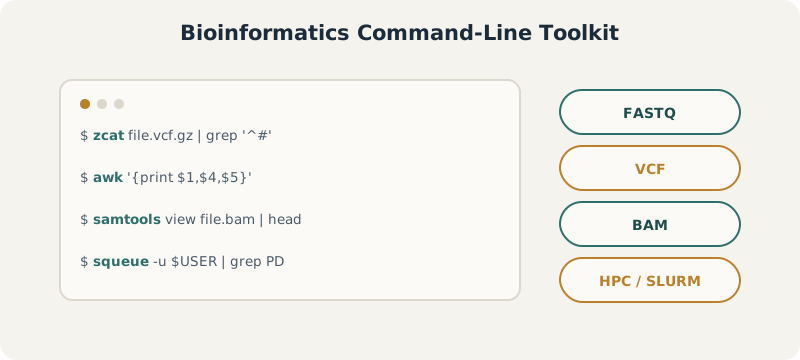
The core command families this cheat sheet covers: file inspection, pattern matching, column processing, and job management on an HPC cluster.
Bioinformatics workflows almost always come down to the terminal: inspecting sequencing files, filtering variant calls, and shepherding jobs through an HPC queue. This cheat sheet collects the commands reached for most often across those tasks — from basic Linux navigation to awk/grep one-liners for VCF files and SLURM job management. Everything below is copy-paste ready.
Linux/Unix Shell awk grep SLURM/HPC
1 Basic Linux Commands
cd <path/to/dir>– Change working directory
pwd– Print working directory
ll(alias forls -l) – Show the contents of the current directory as a list
head -n X <filename>– Print the first X lines of a file
cat <filename>– Print the full content of a file
less <filename>– Display the file and scroll through lines (exit by pressingq)
zcat <filename.gz> | head– Print the head of a.gzfile (pipes full content tohead)
cp <from_file.xyz> <to_file.xyz>– Copy a file from one location to another
mv <old_file.xyz> <new_file.xyz>– Move a file (also used for renaming)
rm <file>– Remove a file
rmdir <directory_name>– Remove a directory (must be empty)
mkdir <directory_name>– Make a new directory
grep <pattern> <filename>– Print lines in a file containing a pattern
find . -name "*.txt"– Search for files in the current directory matching*.txt
nano <file>– Open the Nano text editor to create or edit files
find /path/to/folder -type f | wc -l- Count the total number of files in a specific folders.ls | head -20– Show the first 20 files in the current folder
ls | tail -20– Show the last 20 files in the current folder
ls -lt | head -20– Show the 20 most recently modified files
ls -ltr | head -20– Show the 20 oldest files (by modification time)
ls -1 | wc -l– Count the total number of files in the directory
ls -a | head -20– Show the first 20 files, including hidden files (those starting with.)ls -d $PWD/* | head -20– Show the first 20 files with full pathnamesdu -sh *– Show the size of all files and folders in the current directory (human-readable format)
du -sh <folder_name>– Display the size of a specific folder
du -sh .– Show the total size of the current directorydu -sh * | sort -h– Sort files and folders by size (smallest to largest)
du -sh * | sort -hr | head -20– Show the 20 largest files/folders in the current directoryls -lhS | head -20– Show the 20 largest files in the current directory
find . -type f -exec du -h {} + | sort -hr | head -20– List the 20 largest files recursively in current and subdirectoriesdf -h– Display disk space usage for all mounted file systems (human-readable format)
df -h /path/to/dir– Show available disk space for a specific directory path
1.1 One-Liner: Counting Folders Missing Compressed Files
A common HPC hygiene check — scanning a batch of result folders (e.g. GWAS summary statistics) for any that are missing their expected .gz output:
count=0
for dir in sumstats_FG*/; do
    if ! ls "$dir"/*.gz >/dev/null 2>&1; then
        echo "No .gz file in: $dir"
        ((count++))
    fi
done
echo "Total folders without .gz files: $count"
2 Basic Vim Commands
vim <filename>– Open a file in Vim (creates it if it doesn’t exist)
i– Switch to Insert mode (to start editing text)
Esc– Exit Insert mode and return to Normal mode
:w– Save (write) the file
:q– Quit Vim
:wq– Save and quit Vim
:q!– Quit without saving changes
x– Delete the character under the cursor
dd– Delete the current line
yy– Yank (copy) the current line
p– Paste the copied or deleted text below the cursor
/pattern– Search forward for a pattern in the file
n– Repeat the last search in the same direction
u– Undo the last action
Ctrl + r– Redo an undone action
gg– Go to the beginning of the file
G– Go to the end of the file
3 Searching with grep
grep "ACTG" <filename>– Find lines containing ACTG
grep -v "N" <filename>– Exclude lines with “N”
grep -c "rs" <filename>– Count lines with “rs”
grep -w "chr1" <filename>– Match whole word “chr1”
zgrep "chr1" <filename>.vcf.gz– Grep inside gzipped VCF file
4 Column Operations with awk
awk '{print $1}' <filename>– Print 1st column
awk '$5 > 0.05' <filename>– Filter rows with 5th column > 0.05
awk 'NR>1' <filename>– Skip header (first row)
awk 'BEGIN{FS="\t"} {print $2,$3}' <filename>– Tab-delimited input
5 Working with .vcf.gz Files
zcat file.vcf.gz | head
Shows the top lines including headers and first few variantszcat file.vcf.gz | tail
Shows the last few lines — useful for trailing infozcat file.vcf.gz | grep '^#'
Shows all header lines (metadata + column names)zcat file.vcf.gz | grep -v '^#'
Skips headers and shows actual variant recordszcat file.vcf.gz | grep -v '^#' | cut -f10 | head
Displays the contents of the FORMAT/sample columnzcat file.vcf.gz | grep -v '^#' | wc -l
Counts the number of data (variant) rowszcat file.vcf.gz | grep -m1 '^#CHROM' | cut -f9
Extracts FORMAT field labels (e.g., ES:SE:EP:AF:AFKG)zcat file.vcf.gz | grep -v '^#' | awk 'NR <= 5 { print $3, $4, $5 }'
Prints rsID, REF, and ALT for the first 5 variants
6 Finding Files with find
find . -name "*.vcf"– Find all .vcf files
find /data -type f -size +1G– Files >1GB in/data
find . -mtime -1– Modified in last 24 hrs
find . -exec grep "rs123" {} \;– Search “rs123” in all files
find . -mindepth 1 -maxdepth 1 -type d | wc -l- Count the number of folder inside a folderfind . -name "filename.txt"– Search for a file named filename.txt in the current directory and subdirectories
find /path/to/search -name "filename.txt"– Search for a file in a specific directory path
find / -name "filename.txt" 2>/dev/null– Search the entire system (suppress “Permission denied” errors)
locate filename.txt– Quickly search for a file using the system’s file index (requiresmlocateorplocateinstalled)
find . -iname "filename.txt"– Case-insensitive search for the file name
7 Text Processing Essentials
cut -f1,3 <filename>– Cut fields 1 and 3
sort <filename>– Sort lines
sort -k2,2n <filename>– Sort by 2nd column numerically
uniq -c <filename>– Count unique lines
paste <file1> <file2>– Merge files side by side
wc -l <filename>– Count lines in a file
8 Genomic Data Tools
samtools view <file>.bam– View alignment data
bcftools view <file>.vcf.gz– View VCF data
bedtools intersect -a <a.bed> -b <b.bed>– Genomic region overlap
plink --bfile <data> --assoc– Run basic association test
9 Common HPC command
srun --time=02:00:00 --mem=8G --cpus-per-task=2 --pty bash– Start an interactive session on the HPCsqueue– View the job queue
squeue -u <user_id>– View jobs from a specific user
squeue --help– View additional options forsqueue
sacct -j <job_id>– Get the status of a specific job
scontrol show job <job_id>– View extended information for a specific job
seff <job_id>– View running jobs with estimated CPU usage efficiency
scancel <job_id>– Cancel a specific job
scancel -u <user_id>– Cancel all running jobs for a user
sinfo -N– View the current load on the queuing systemsqueue --states=PENDING– Show only pending jobs in the queue
squeue -u <user_id> --states=PD– Show only your pending jobs
squeue | grep PD | wc -l– Count how many jobs are pending system-wide
squeue -u <user_id> | grep PD | wc -l– Count how many of your jobs are pending
10 Next Steps
These commands cover the majority of day-to-day file inspection and job management, but a few directions are worth exploring next: writing small awk/bash scripts to automate recurring QC checks, learning sbatch for submitting batch (non-interactive) HPC jobs, and using tmux or screen to keep long-running sessions alive after disconnecting.
sbatch tmux Shell Scripting QC Automation